How to Connect AI to Google Workspace: A Practical Guide
Most companies use Google Workspace. Most companies want AI assistants. Very few have actually connected the two in a meaningful way.
The typical approach — copy-paste data into ChatGPT — breaks down the moment you need real-time access to spreadsheets, calendars, or documents. Your AI assistant needs to read your business data, not receive stale screenshots of it.
Here’s how we connect AI to Google Workspace in production, based on systems we’ve deployed for real clients.
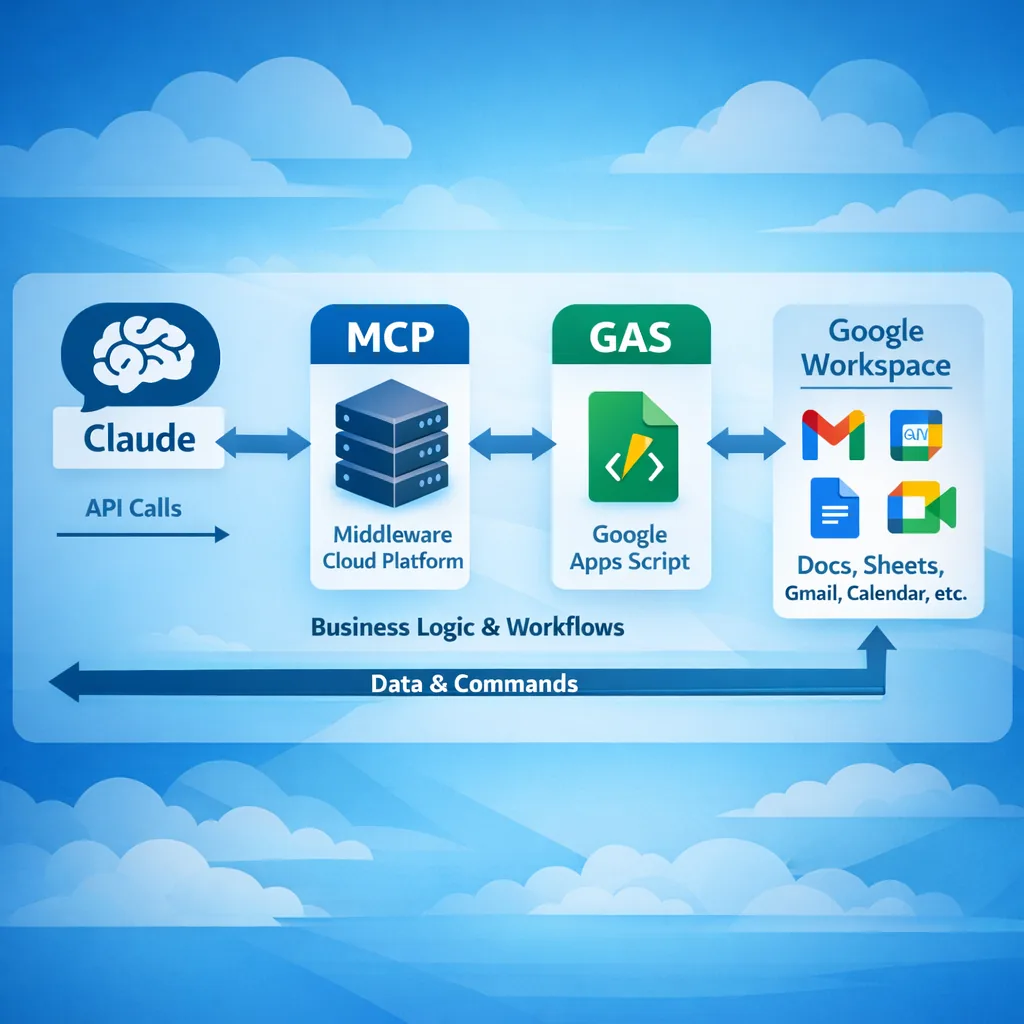
The Architecture: AI → MCP → Google Apps Script → Workspace
The connection chain looks like this: your AI assistant (Claude or GPT) talks to a local MCP server, which forwards requests to a Google Apps Script web app, which has native access to all Google services.
Why this architecture instead of direct API calls? Three reasons. First, Google Apps Script handles OAuth natively — no token management headaches. Second, one deployed script gives you access to Drive, Sheets, Calendar, Gmail, and Tasks simultaneously. Third, it’s free and runs on Google’s infrastructure with no server to maintain.
What You Can Actually Do
Once connected, your AI assistant can perform real operations across Google Workspace.
Google Drive becomes searchable by AI. The assistant can find files by name or content, read document text, create new documents, and organize folders. Instead of “where did we put that proposal?” — the AI finds it in seconds.
Google Sheets becomes a live data source. The AI reads current numbers, writes updates, and can even generate reports from raw data. Financial dashboards, CRM trackers, inventory sheets — all accessible through natural language.
Google Calendar enables scheduling awareness. The AI knows what meetings are coming, can create events, and understands availability. “What’s my week look like?” gets a real answer, not a generic response.
Gmail (read-only, for safety) lets the AI reference recent communications. It can summarize email threads, find attachments, and understand the context of ongoing conversations.
The MCP Layer
Model Context Protocol (MCP) is the standard that makes this work. Launched by Anthropic and now adopted by OpenAI, Google, and Microsoft — MCP provides a universal way for AI assistants to interact with external tools.
The MCP server runs locally on your machine. It translates the AI’s requests into API calls to your Google Apps Script deployment. The script then executes the actual Google Workspace operations and returns results.
This means your data never passes through third-party servers. The AI reads from Google directly (via your script), and all processing happens locally.
For a broader overview of what MCP is and why it’s becoming the standard, see MCP Explained. If you’re weighing MCP against direct API calls for your use case, check MCP vs Direct API Integration.
Building the Bridge: Google Apps Script
The Google Apps Script serves as a lightweight API gateway. Each function maps to a Workspace operation — searchDrive(), readSheet(), createEvent(), etc.
A production deployment typically includes 20-50 functions covering the most common operations. We’ve built bridges with 36 production functions that cover every practical need a business team has.
Key design decisions in a production script: use doPost() for all incoming requests (not doGet()), implement proper error handling with specific error codes, add access logging for security auditing, and version your deployments carefully — redeploying an existing version doesn’t update the code.
Access Control
Not everyone should see everything. A real deployment needs access levels.
We implement this through separate AI configurations (Claude Projects or Custom GPTs) with different system prompts and different sets of accessible functions. An executive configuration might have full access including financial data, while a staff configuration excludes sensitive folders and documents.
The access control happens at two levels: the AI’s system prompt defines what it’s told to access, and the Apps Script functions can enforce folder-level restrictions server-side.
Common Pitfalls
File format matters. Claude on Google Drive reads application/vnd.google-apps.document natively. If you upload a .docx or .md file without converting it to Google Docs format, the AI can’t read its contents through Drive API. Always convert.
OAuth requires explicit authorization. When you add new Google services to your script (say, Calendar after initially only using Drive), you need to run an authorization trigger and create a new deployment version. Simply redeploying the existing version won’t trigger the OAuth flow for new services.
Start read-only on Gmail. Email is sensitive. Begin with read-only access. Writing or sending emails through automation is technically possible but introduces significant risk — one wrong prompt could send an email to the wrong person.
Test with dummy data first. Before connecting to production spreadsheets and documents, test your entire setup with copies. AI assistants can write data, not just read it — and an incorrect write to a critical spreadsheet is hard to undo.
What This Looks Like in Practice
After deployment, the workflow changes fundamentally. Instead of: open Drive → search → open file → read → switch to Sheets → find data → copy → paste into email — you say: “Find our latest pricing for CLT panels and draft a response to the client inquiry from yesterday.”
The AI reads the pricing document from Drive, pulls current rates from the Sheets tracker, references the Gmail thread, and drafts a response with accurate, current data.
Information retrieval drops from 15-30 minutes to 10-30 seconds. Not because the AI is faster at reading — but because it knows where everything is and can access it all simultaneously.
Getting Started
The minimum viable setup requires: a Google account with the relevant Workspace apps, Claude Pro or ChatGPT Plus subscription, Node.js installed locally (for the MCP server), and about 2-3 hours for initial configuration.
For a business-grade deployment with multiple access levels, custom functions, and team training — that’s what we do at Infracortex. Our AI Assistant Setup service covers the full implementation in 1-2 weeks.
If you want to understand what’s possible for your specific setup, book a discovery call — we’ll map your Google Workspace and show you exactly what an AI assistant could access and automate.