

A neat spreadsheet can hide a hard question: where did this value come from? While fields from completion certificates, invoices and contracts are copied across by hand, the answer usually lies with whoever copied them. Once the transfer is automated, the system itself has to know the answer.
This article is about moving data from documents into a spreadsheet or accounting system: how to store the basis for every field, check values before export and keep tables from losing their meaning. If your task is a different one and staff need answers to questions about documents, start with our article on what to prepare in documents before adding AI search and our page on answers grounded in your documents.
Start with one manual handoff
"We need to automate document work" is not something you can act on: it is too broad. Take one handoff that someone currently does by hand and answer four questions:
- Who receives the document?
- What data do they transfer?
- Into which system?
- How do they know the step is complete?
An illustrative example: an office manager receives a completion certificate from a contractor by email, enters its number, date, amount and contract number in a spreadsheet, and marks the row as ready for the accounts team.
Add two more questions that are often forgotten. How good is the source data? What does the person do if a required field is missing from the document, or has to be checked with the sender? Exceptions like these are usually where most of the time goes.
Then check the APIs, access permissions and limitations of the systems involved. Knowing which services are involved does not tell you whether they can be connected. The review can end in different ways: automate one limited handoff, clean up the source data first, or change the process itself. Agree on the next step before development starts.
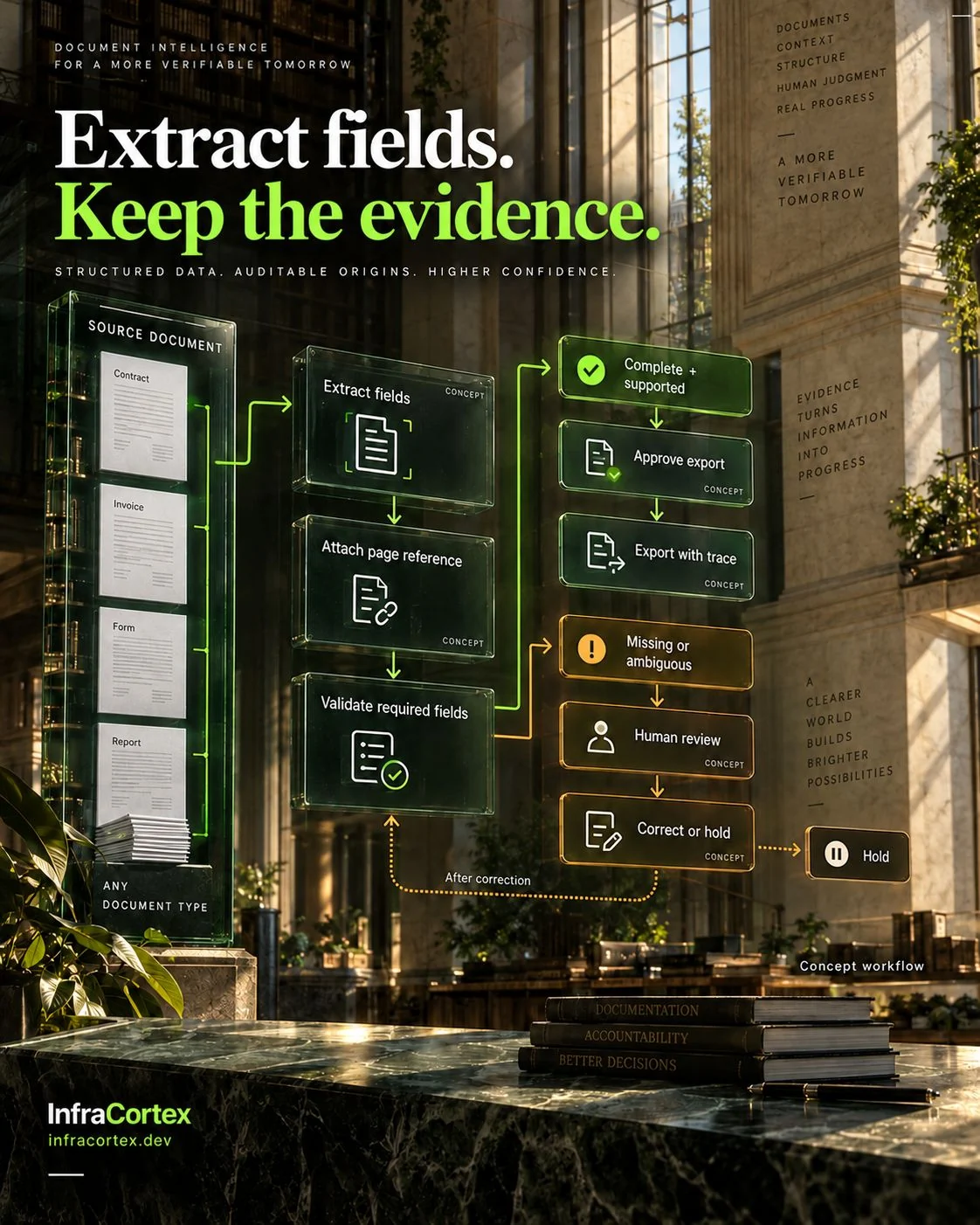
Every field has a provenance
Store the basis together with the suggested value:
- the document: its identifier, not just the file name;
- the version of the document or the date it was received;
- the page and passage the value was taken from;
- who suggested the value: a rule, a model or a person;
- the current status of the field.
That way the reviewer goes straight to the right place in the document instead of searching the whole archive all over again. And six months later, the question "why does this contract have these payment terms?" can be answered by opening a specific page rather than digging through old correspondence.
The suggested value is kept separate from the approved one
The suggested value and the approved value are two different fields. Only approved values go into the export. A rule can approve a value if the value is present in the document, supported by a passage and passes the checks. If the basis is ambiguous, a person approves it.
Corrections must leave a trail. When a reviewer changes a value, keep the original suggestion, the correction and the reason for it. Over time this history shows where extraction goes wrong systematically: for example, confusing the document date with the signing date in one particular template.
Plausible is no substitute for missing
If a value is not in the document, the field is marked as exactly that: "not in document". Substituting a similar value from another document, or a "typical" one, is not allowed.
An extraction confidence score is a useful signal, but not a reason to ignore a contradiction in the source itself. If the amount in figures differs from the amount in words, or a table total does not equal the sum of its rows, the field goes for review even if the model is "confident".
Checks before export
Before values go into the spreadsheet or accounting system, answer three questions:
- Is the required value present, and does the source support it?
- Does it meet the rule for this document type? For example, the contract number is in the contract register, and the currency matches the contract currency.
- Who is entitled to approve the value if the basis is ambiguous?
The third question is organisational, and it has to be answered before launch. Otherwise disputed fields will pile up with no one responsible for them.
A table must keep its meaning
A table can look fine in a PDF and lose its meaning once the text is extracted. A number on its own means nothing: it only takes on meaning together with its row, column heading, unit of measurement and footnote. We described how to check that the system has read a table correctly in the first place in our article on preparing documents for AI search. For moving data, add a few more checks.
- The unit as a separate field. If the heading says "in thousands" and the cell says "120", the export should contain "120" with the unit "thousand", or the converted value, but not a bare "120".
- An empty cell, a zero and "not applicable" are different values. A dash, a blank and "0" must not be collapsed into one. Agree how each of them is written to the export.
- Empty cells shift values. When text is extracted, an empty cell can simply disappear, and a value from the neighbouring column ends up in the wrong place. Check a few rows with gaps by hand.
- A footnote is part of the value. If a price applies only to orders of 10 units or more, that condition has to go into the export along with the price.
Take a table from a real task and compare the result with the original row by row: which row each value belongs to, where the unit is stated, what condition the footnote adds. Have the document owner check both the values and the passages they are based on. If the structure has been lost, fix how the table is represented and repeat the check. Until then, the table does not count as a verified source for this task.
When the source changes
A supplier sends a corrected certificate, a new edition of a contract comes out, a price list is updated. Fields extracted from the old version need to be flagged for re-checking before the export is used again. A reference to the version in every field helps you find all the affected values instead of re-checking everything.
Do not overwrite silently. The approved value from the previous version stays in the history, and the fields from the new version go through the "suggested, checked, approved" path again. If the old data has already been passed on, decide in advance who is told and what happens to it.
Checklist
- One manual handoff is described: who receives the document, what data, where it goes and how to tell that the step is complete.
- It is known what to do if data is missing or the document needs clarification.
- System APIs, permissions and limitations were checked before development started.
- Every field stores the document, version, page and passage.
- Suggested and approved values are stored separately, and only approved values go into the export.
- A missing value is flagged, not filled in with a substitute.
- Before export, the presence of the value, the rule for the document type and the right to approve are checked.
- Corrections keep the original value, the new value and the reason.
- Tables keep their headings, units and footnotes, and empty cells are distinguished from zeros.
- When a new version of a document arrives, the affected fields go back for re-checking.
Where to start
Take one document type and agree on the list of fields. Describe the manual handoff using the four questions above. Gather a small set of real documents, including the awkward ones: scans, tables with gaps, corrected versions. The output of the first pilot is an export you can check: every value links to its source, and alongside it sits a list of corrections with their reasons. If you need this kind of transfer from email or a folder into a spreadsheet, take a look at the "Documents → records" scenario on the process automation page.
If your team has a document that is still being retyped by hand, describe the process to us on Telegram (@infracortex_studio). For a first conversation, a description of the steps is enough, with no internal documents or personal data.